Assets, fonts & production
A home for your creative files.
Browse assets and fonts, organise collections, build layouts and work with PDFs. A free creative library.
Jago Library · v0.9.0 · Included in JAGO Suite 2.8.0

A look inside the studio
The right file is probably somewhere. Jago Library helps you bring scattered creative assets into view, try fonts properly and turn a useful find into something you can share.
Browse files where they already live, collect copies into a Library home, or organise project collections without moving originals. Production gives you a place to make a layout; PDF tools help with the documents that arrive alongside the artwork.
Find the good stuff
Add files and folders, filter by type/extension, tag assets and mark favourites.
Give fonts a proper look
Enter your own words, adjust the preview and inspect glyphs.
Make something in Production
Start a new design or an editable template for brand displays, social artwork, thumbnails or website-style mockups.
See what it can do
The tools, in their element.
A few favourite possibilities, with real studio artwork and working interface views. Open the detailed sections below to explore the individual controls.
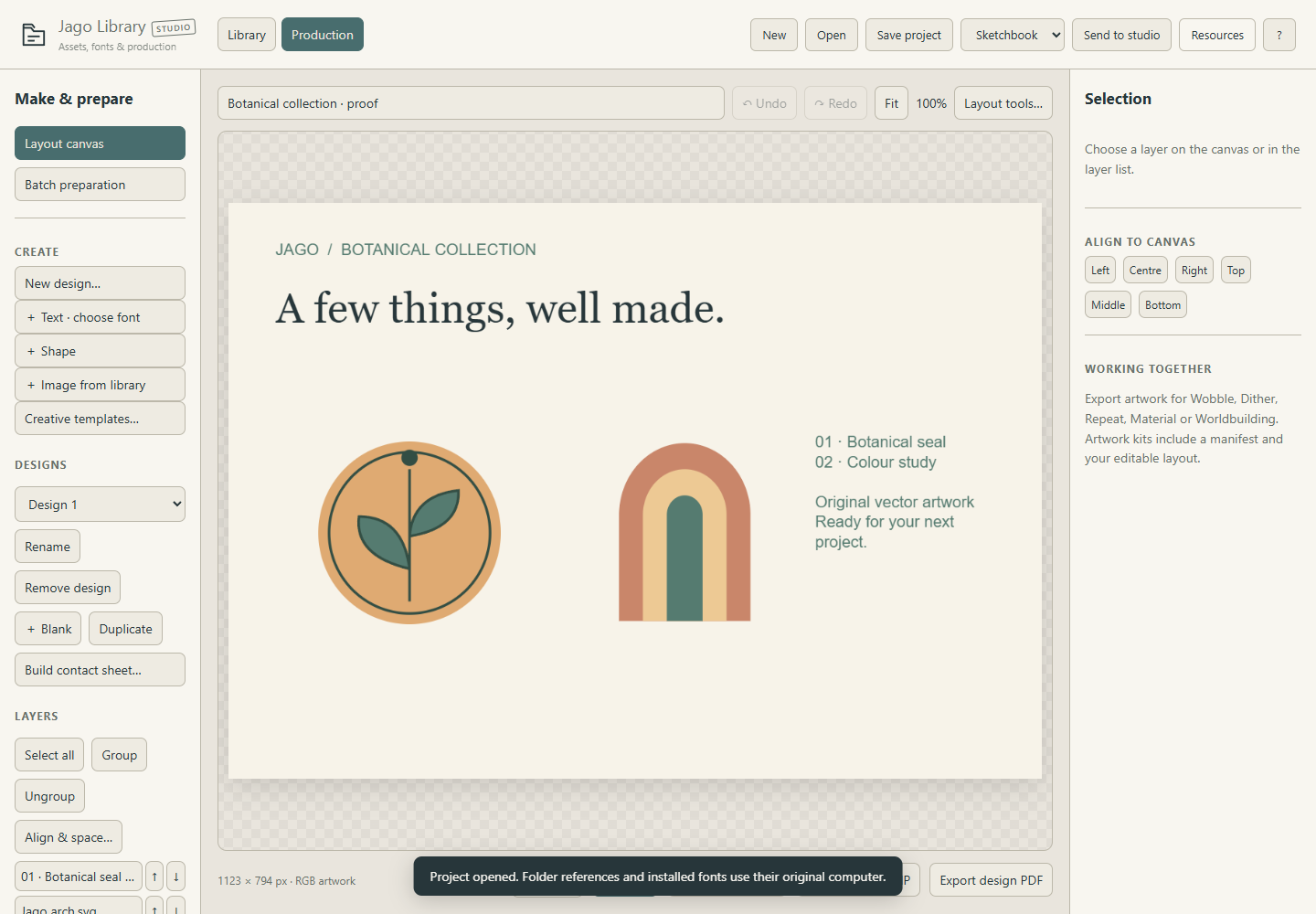
01 / A LITTLE CLOSER
From good bits to finished artwork.
Library is a production Workscape as well as a place for files. Combine images, text and shapes into an editable layout, then prepare it for sharing.
- Build social layouts, contact sheets and brand boards.
- Align, group and snap layout elements.
- Export images, SVG text and shapes with rendered image layers, and multi-page PDFs.

02 / A LITTLE CLOSER
Find the right asset. Keep it useful.
Bring scattered files into a clear collection. Reference originals or collect copies, then use tags, favourites and comparisons to find the right piece.
- Use saved views, shortlists and project collections.
- Compare two to four assets in larger previews.
- Find missing files and byte-identical duplicates.

03 / A LITTLE CLOSER
Prepare a consistent set.
Turn selected images into matching outputs without rebuilding each one. Trim transparent margins, choose the framing and padding, then save a useful recipe for next time.
- Choose consistent dimensions, padding and placement.
- Preview an image before exporting the set as a ZIP.
- Save reusable recipes for repeat production jobs.
Explore the studio
The details that make it yours.
Find the good stuff
- Add files and folders, filter by type/extension, tag assets and mark favourites.
- Use larger thumbnails, full previews, a shortlist and comparison of two to four assets.
- Saved views remember searches and filters; nested project collections organise references.
- Collect copies from scattered drives into a chosen Library home.
- Library health checks missing references and byte-identical duplicates; source, creator and licence notes stay with assets.
- Text and bounded Office previews help identify documents; supported embedded previews make some specialist artwork formats viewable.
Give fonts a proper look
- Enter your own words, adjust the preview and inspect glyphs.
- Filter using origin, variable/static and category metadata where available; favourite useful fonts.
- Send your current words as transparent PNG artwork to another studio.
- Include an available library font file with the specimen, or add it to the persistent Jago font pool.
- Install TTF/OTF fonts for your Windows user. Manage supported user-installed fonts with removal backups and restore; machine/system fonts remain in Windows settings.
Make something in Production
- Start a new design or an editable template for brand displays, social artwork, thumbnails or website-style mockups.
- Add text, artwork and editable shapes, including triangles, hexagons and stars.
- Choose Library artwork without leaving Production. Drag artwork into a shape or use its artwork mask.
- Edit the contents inside an image frame, keeping the original source intact.
- Move, resize, rotate, group, align, distribute, snap, lock and reorder layers, with Undo/Redo.
- Video assets can supply a chosen still frame for a design.
- Batch preparation resizes, trims, pads and fits/crops image sets; recipes keep useful settings.
A practical PDF desk
- Read PDFs, navigate thumbnails/pages, zoom, select/copy text and find matching text.
- Combine, split, reorder, duplicate, rotate, remove and crop pages with Undo.
- Export page images, text/data, multi-page PDFs and image/design-to-PDF.
- Convert to Word using offline reconstruction, editable text, readable text or appearance-preserving page images.
- Offline reconstruction offers flowing editing or original-position text boxes for designed pages.
- Recognise English scans locally, review text and create a searchable PDF copy.
- Register Library as a PDF app, then choose it in Windows Default apps. Existing Jago sessions can receive opened PDFs.
Save the project. Share the result.
- Editable .jagolibrary catalogs and production designs
- PNG, JPEG and WebP artwork
- SVG text/shapes with rendered image layers
- Single or multi-page PDF
- Artwork kits with rendered output, project and manifest
- Sprite sheets with JSON manifests
- Batch-preparation image sets and recipes
- PDF-to-DOCX
- PDF page images and split-page ZIPs
- Plain text, HTML, detected-cell CSV and geometry JSON
Useful for
Font selection · Asset organisation · Project moodboards and collections · Brand/social layouts · Website mockups · Batch image preparation · PDF reading, page assembly and conversion · Finding and sending assets across Jago
A few useful things to know.
- Windows font management, native folder access and bundled PDF/OCR engines belong to the Windows edition.
- Specialist file previews depend on embedded previews and supported readers. Not every .ai, .affinity or other proprietary format can be rendered.
- Office previews show bounded content, not exact Word/Excel/PowerPoint rendering.
- Production uses selected video stills; it is not a video editor.
- PDF-to-Word and OCR can need cleanup. Preserve appearance uses images, not editable text.
- PDF cropping is not redaction; detected-cell CSV is not guaranteed table reconstruction.
- Collections organise references; external files must remain available unless collected/embedded.
Getting started
- Download Jago-Library-v0.9.0.zip, right-click it and choose Extract All.
- Open Jago-Library.exe for the Windows app, or Jago-Library.html in a modern browser for the offline browser edition. No installer needed!
- The Windows app requires 64-bit Windows and Microsoft Edge WebView2 Runtime. If it won’t open, try the HTML version instead.
- Keep supporting folders beside the application. Open the extracted files rather than running from inside the ZIP.
- Keep Tools beside Jago-Library.exe for offline PDF conversion and English scan recognition. Windows font management and the bundled document engines are not available in the browser edition.
- To use this release in Workscape, open Home → Manage studios → Choose release and select its executable. Existing tabs keep their running version until closed.
Current Windows binaries are unsigned. Check where your download came from and follow your device’s security guidance.
Get Jago Library
Windows: 64-bit Windows with Microsoft Edge WebView2 Runtime. Offline browser edition included; native integrations vary by edition.
Release v0.9.0 · Jago-Library-v0.9.0.zip